1. Since the first S60 5th Edition (now Symbian^1) smartphone, the 5800 until now, the text input mechanism is something that I really hate.
2. There are 4 options, namely :
– alphanumeric keypad. for one hand usage but it requires a tap on the green tick icon on the top left after typing text… why cant it be placed on other places? such as the bottom of the screen?
– mini qwerty (portrait)
– big qwerty (landscape)
– handwriting recognition
3. The problem for all these text input options (except for the mini QWERTY and HWR) is they are not direct text input. You cant type and see the text entry box at the same time because the text entry window is separated from the text entry box. Why do the typed text box have to be included?
4. And the mini QWERTY is too small to use for someone with big thumb.
5. Using the alphanumeric keypad is even non-productive because there are too many “procedures” to do something as simple as typing a text message, for example.
6. You need to select write new message, the message editor will pop out. Click on the empty area, the alphanumeric text entry window will appear. Then you need to type the text, after that you need to tap the green tick icon on the top left, after that, send SMS. Phew…
7. I hate it and I feel it’s too much… Hence, I need to get an alternative.
8. And I found Dayhand text entry which solves almost all my text entry problems.
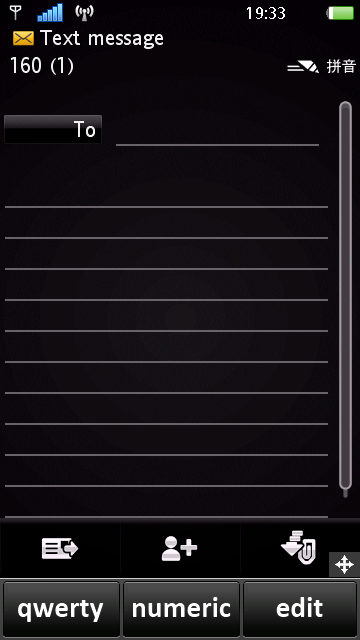
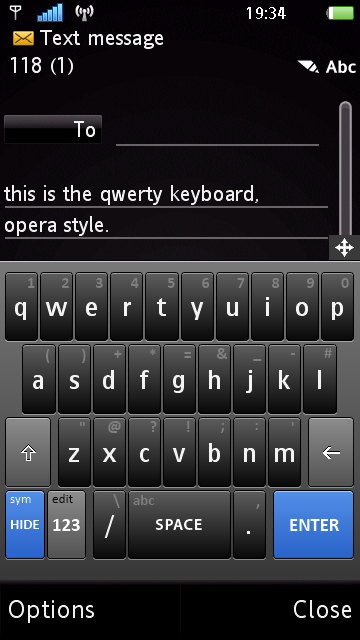
9. It gives me a bigger QWERTY keyboard, with many options including an alphanumeric keypad (that doesn’t eat all the screen’s space), smiley keypad (yesss!!!), an editing keypad and more.
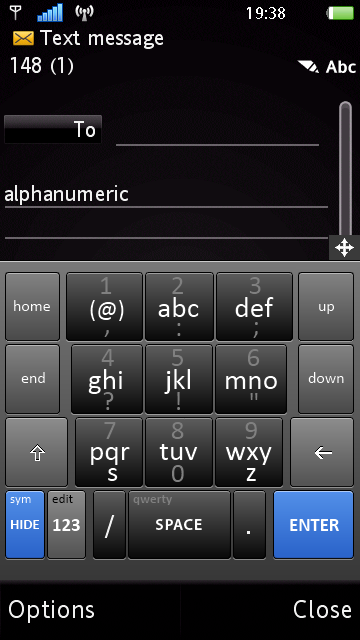
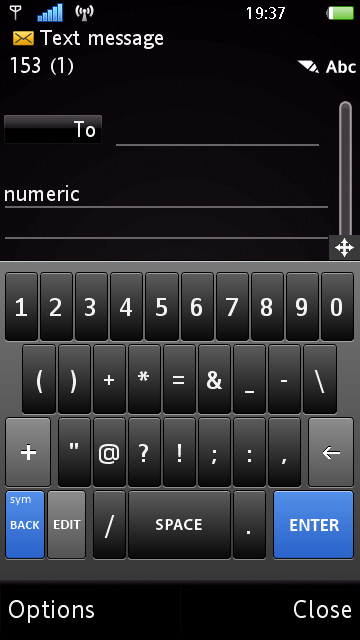
10. It even has a predictive mode which can be activated easily.
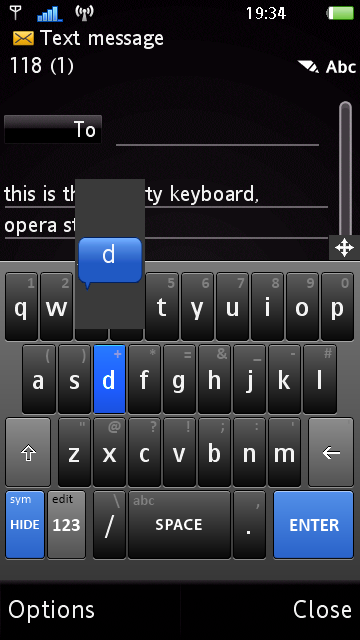
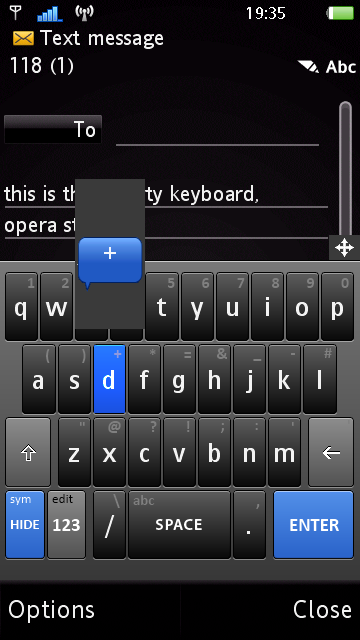
11. However, the most interesting in terms of usability and it’s excellent design is the tap and drag to select the alternative alphabet / mode. For example, tap on the letter “d” and drag it up, it will print “+“. Very convenient 
12. Thumb-typing is easy using Dayhand keyboard. I haven’t found any problem using it. Ah… and the landscape qwerty is a joy to use! HUGE alphabet keys!
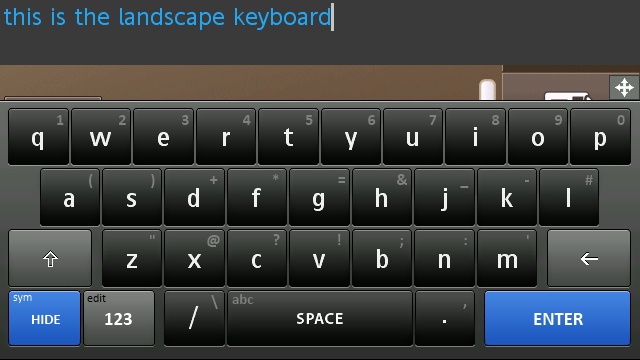
13. I can type faster and more convenient using this alternative method.
14. Please Symbian… Make a better text entry method in future Symbian releases…
15. If you are interested to use Dayhand keyboard, the files are available in our download section. They need to be signed or you need to hack your phone to install them.
* This is a modified version done by Mr. Milk. His words “This is the result of a personal effort to bring something good and free for the community. I’m not the application developer and have no way to change its core functionalities”
Cheers!